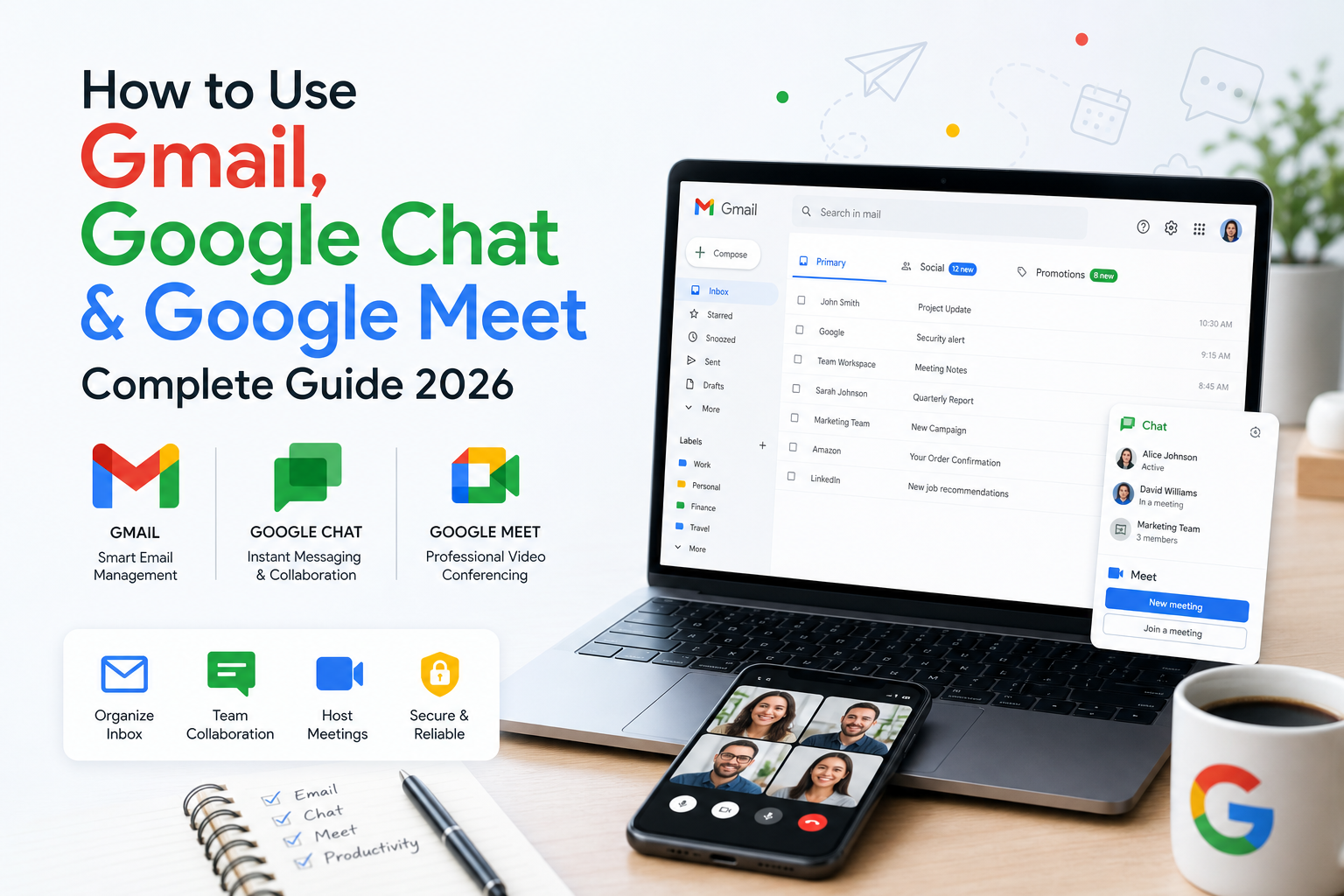
How to Use Gmail, Google Chat & Google Meet – Complete Guide 2026
Gmail is one of the most widely used email platforms in the world, and Google has transformed it into a complete communication hub by integrating Google Chat and Google Meet directly into the Gmail interface. Whether you're a student, professional, or everyday user, mastering these tools can dramatically improve your productivity.
In this comprehensive guide, we'll walk you through everything — from setting up the Gmail app to organizing your inbox, using Chat for instant messaging, and hosting professional video meetings with Google Meet.
1. Getting Started with the Gmail App
Gmail is Google's free email service available on Android, iOS, and the web. To get started:
- Download the Gmail app from the Google Play Store or the Apple App Store.
- Open the app and sign in with your Google account.
- If you don't have an account, tap "Create account" on the sign-in screen.
Once signed in, you'll see your inbox with a bottom navigation bar for Mail, Chat, Spaces, and Meet. The compose button (a colorful pencil icon) in the bottom-right corner lets you write new emails instantly.
Add Multiple Email Accounts
One of Gmail's best features is multi-account support. You can add Outlook, Yahoo, or corporate email accounts alongside your Google account. To do this:
- Tap your profile picture in the top-right corner.
- Tap "Add another account."
- Choose the account type and follow the sign-in steps.
This lets you manage all your emails from a single app without switching between different platforms.
Customize Notifications
Gmail supports push notifications with flexible controls. You can choose to be notified for all emails, primary emails only, or high-priority emails only. To adjust this:
- Tap the hamburger menu (three horizontal lines) in the top-left.
- Go to Settings.
- Select the account you want to configure.
- Adjust notification preferences under the Notifications section.
Useful Gmail App Features
- Swipe Actions: Customize what happens when you swipe left or right on an email — archive, delete, mark as read, or snooze.
- Undo Send: Made a mistake? You can undo sending an email within a few seconds after hitting send.
- Offline Access: Read and compose emails without an internet connection. Emails send automatically when you reconnect.
2. Mastering Your Gmail Inbox
Your inbox is the heart of Gmail. By default, Gmail organizes emails into categorized tabs:
- Primary: Important personal and work emails.
- Social: Notifications from Facebook, Twitter, LinkedIn, etc.
- Promotions: Marketing emails, deals, and newsletters.
- Updates: Receipts, bills, and confirmations.
- Forums: Messages from online groups and mailing lists.
You can enable or disable these tabs by going to Settings → Inbox type.
Star and Label Your Emails
Starring an email marks it for quick access later. Tap the star icon next to any email, then find all starred messages under "Starred" in the side menu.
Labels work like folders but are more powerful — a single email can have multiple labels. Create custom labels such as "Work," "Personal," "Finance," or "Travel" to keep things organized. On the web, go to the left sidebar and click "Create new label." On mobile, manage labels through Settings.
Archive vs. Delete
- Archiving removes an email from your inbox but keeps it searchable in "All Mail." Great for keeping your inbox clean.
- Deleting moves an email to Trash, where it stays for 30 days before permanent deletion.
Powerful Search Operators
Gmail's search is incredibly powerful. Use these operators to find any email instantly:
| Operator | What It Does | Example |
|---|---|---|
from: |
Search by sender | from:john |
to: |
Search by recipient | to:sarah@email.com |
subject: |
Search by subject line | subject:invoice |
has:attachment |
Emails with attachments | from:boss has:attachment |
before: / after: |
Search by date range | after:2026/01/01 |
Snooze Emails for Later
Can't deal with an email right now? Snooze it. The email disappears from your inbox and reappears at the top at your chosen time. Swipe right on an email or tap the three-dot menu and select "Snooze."
3. Using Google Chat from Gmail
Google has integrated Google Chat directly into Gmail, so you can message people without leaving your inbox.
Enable Chat in Gmail
On the web:
- Click the gear icon (Settings) in the top-right corner.
- Click "See all settings."
- Go to the "Chat and Meet" tab.
- Under Chat, select "Google Chat" to enable it.
- Click "Save Changes."
On mobile, Chat is available in the bottom navigation bar by default.
Start a Conversation
Click the Chat icon, then the plus button or "New chat." Search for a person by name or email. You can send text messages, emojis, share files from Google Drive, and even collaborate on documents directly within the chat window.
Google Spaces for Teams
Spaces are dedicated group conversation areas for teams or projects. They support:
- Threaded conversations for organized discussions.
- File sharing directly from Google Drive.
- Task assignment and tracking.
Spaces are especially useful for remote teams who need a persistent, organized communication channel.
Set Your Status
Let colleagues know your availability by setting a status. Click your profile picture, then choose a preset status or create a custom one — such as "In a meeting," "Working remotely," or "On vacation."
4. Google Meet – Video Conferencing Made Easy
Google Meet is Google's video conferencing platform for personal and professional use. Access it at meet.google.com, through the dedicated mobile app, or directly from Gmail and Google Calendar.
Start a New Meeting
Go to meet.google.com and click "New meeting." You'll get three options:
- Create a meeting for later — generates a shareable link.
- Start an instant meeting — opens your camera and mic immediately.
- Schedule in Google Calendar — creates a calendar event with an embedded Meet link.
Join a Meeting
You can join a meeting by:
- Clicking the meeting link shared with you.
- Going to meet.google.com and entering the meeting code.
- Joining from a Google Calendar event.
- Joining from the Meet section in Gmail.
In-Meeting Controls
During a meeting, you'll find these controls at the bottom of the screen:
- Microphone button: Mute/unmute yourself.
- Camera button: Turn video on/off.
- Present now: Share your entire screen, a specific window, or a browser tab.
- Captions: Enable live captions for real-time transcription.
- Chat: Send text messages to participants during the meeting.
Advanced Features
- Virtual Backgrounds & Blur: Hide your surroundings with a custom background or blur effect. Access these from the three-dot menu.
- Recording: Record meetings for later review (available on certain Google Workspace plans).
- Whiteboard: Brainstorm visually with participants using the built-in whiteboard tool.
- Polls & Q&A: Gather quick responses or let attendees submit and upvote questions — perfect for large meetings.
- Breakout Rooms: Split a large meeting into smaller discussion groups. The host can assign participants and set timers.
Host Controls
As a meeting host, you can:
- Mute other participants.
- Remove disruptive attendees.
- Control who can share their screen.
- Lock the meeting to prevent new participants from joining.
Platform Compatibility
Google Meet works on Chrome, Firefox, Edge, and Safari without installing any software. On mobile, use the dedicated Google Meet app for Android or Google Meet app for iOS. You can also dial in by phone for audio-only participation (available with certain Workspace plans).
Frequently Asked Questions (FAQs)
Is Gmail free to use?
Yes, Gmail is completely free for personal use. Business users can access additional features through Google Workspace paid plans.
Can I use Gmail offline?
Yes, the Gmail app supports offline access. You can read and compose emails without internet. They will be sent automatically when you reconnect.
How many people can join a Google Meet call?
Free Google accounts support up to 100 participants. Google Workspace plans support up to 500 participants depending on the plan.
Is Google Meet secure?
Yes, Google Meet uses encryption in transit and provides host controls to manage participants, lock meetings, and control screen sharing permissions.
Can I record a Google Meet call?
Recording is available on Google Workspace Business Standard, Business Plus, Enterprise, and Education plans. Free personal accounts do not include recording.
Conclusion
Gmail, Google Chat, and Google Meet together form a powerful, free communication suite that covers email, instant messaging, and video conferencing — all accessible from a single interface. By mastering these tools, you can streamline your daily communication, collaborate more effectively with teams, and stay organized across all your personal and professional interactions.
Start exploring these features today and take your productivity to the next level!